Bria Guided Remove Background — AI Image Background Remover (Image-to-Image)
What is Bria Guided Remove Background?
Bria Guided Remove Background is a prompt-controlled background remover that lets you say, in plain English, exactly what a cutout should keep or drop. It starts from Bria's state-of-the-art RMBG-2.0 segmentation and then follows your words: add an item the standard cut misses, drop one it keeps, or narrow the cut to a single named object. A missing or blank prompt returns a standard one-click background removal, so the same endpoint handles both automatic cutouts and guided edits.
The output is a true-alpha PNG at the input's original resolution. No pixels are repainted — only a new alpha channel is added — so your subject keeps its exact colors and detail, ready to composite over any background.
Key Features
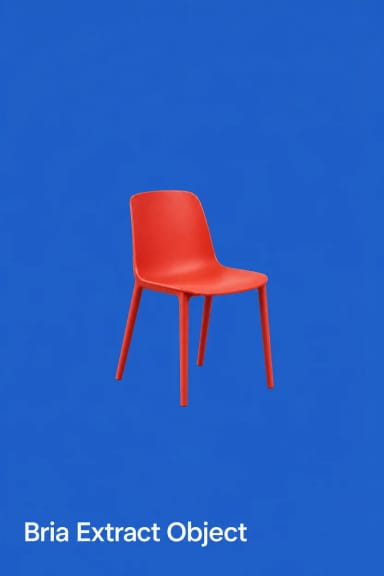
- •Prompt-guided cutouts: add, remove, or narrow the foreground with natural language ("only the chair", "the player without the dog").
- •True-alpha output: transparent PNG at original resolution, original pixels untouched.
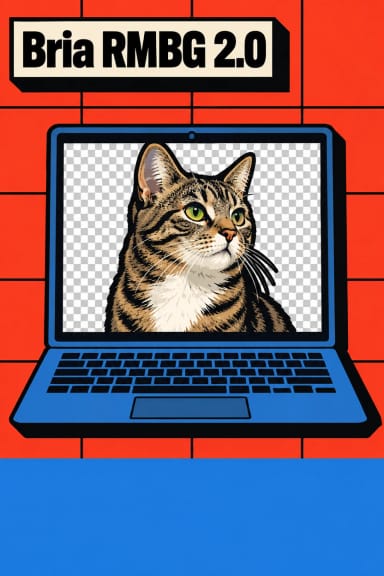
- •Clean soft edges: RMBG-2.0 sub-pixel mattes keep hair and fur crisp against transparency.
- •preserve_alpha: retains partial transparency from inputs that already carry an alpha channel.
- •Built-in moderation: optional input and output content checks for safe, scalable pipelines.
- •Commercially safe: trained exclusively on licensed data.
Best Use Cases
Guided removal shines when a one-click remover is too blunt. For e-commerce, keep a product plus its prop while dropping a stray hand or a second item. For marketing and design, isolate one object from a styled flat-lay, or pull a single subject out of a cluttered interior, table setting, or workspace where there is no obvious foreground. Because cutouts return at full resolution with a clean matte, they drop straight into Photoshop, Figma, or a graphics stack without a halo, and pair naturally with downstream replace-background or lifestyle-shot steps. Scripting the prompt makes cutouts predictable and repeatable across large image sets.
Prompt Tips and Output Quality
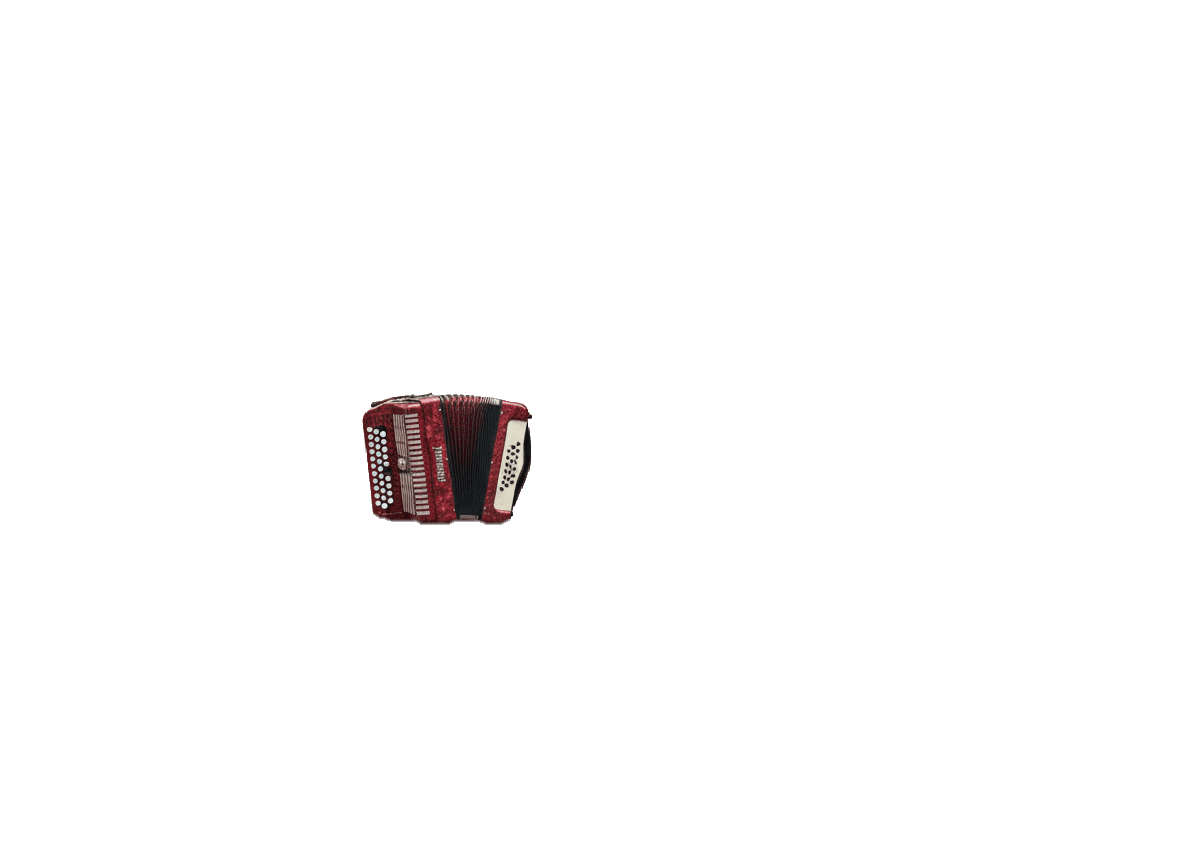
Name your target by a distinctive attribute — color plus object type ("the red accordion") reads more reliably than a bare noun. Use "only the …" to narrow to one subject, "… without the …" to drop one element, and "… with the …" to keep extras the default cut discards. Leave the prompt blank for a plain removal. Keep preserve_alpha on so fine hair and fur edges stay soft. Highest-resolution originals give the cleanest mattes; very low-resolution inputs and fine glass reflections are the hardest cases.