Krea 3 Image Edit: change the scene and keep the product pixel-exact
Edit any photo or combine up to eight references while products, people and labels stay pixel-exact in native 2K.
Krea 3 Image Edit is Krea's editing-first image model. You give it one to eight reference images and a plain-language instruction — say what to change and what to keep — and it returns the edit at native 2K. Its defining trait is restraint: it leaves alone anything you did not name, so a product's shape, label and logo survive a rebuilt scene. The text-to-image sibling makes new pictures from a prompt; this model transforms and combines images you already have.
 ModelKrea 3 Image EditEdit images and swap products, keeping labels pixel-exact.
What it does well
Keep the product, rebuild the scene
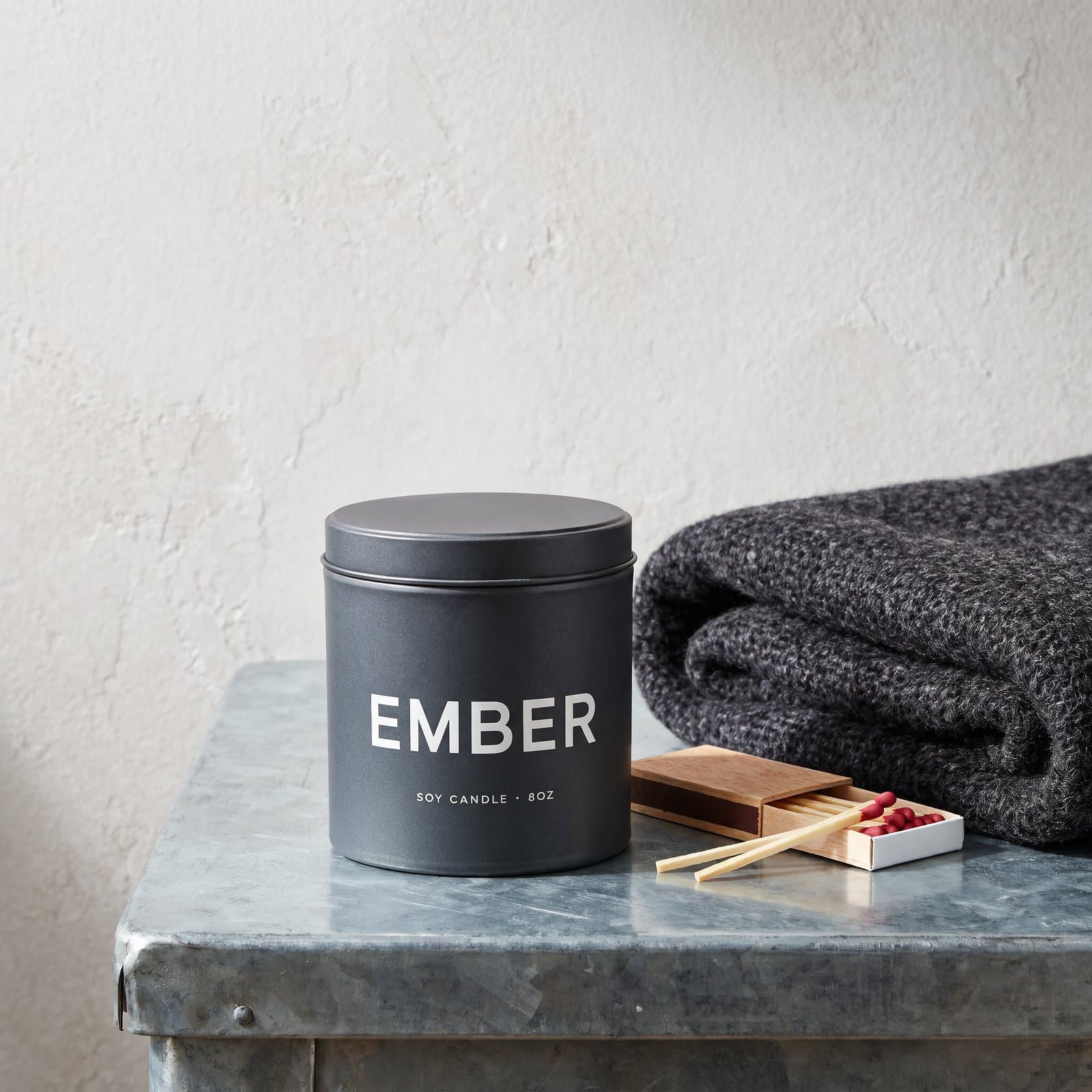
Point Krea 3 at a plain packshot and describe the setting you want around it. The product's shape, label and logo stay sharp while the background is rebuilt. Lead with the new scene, then close with one sentence naming what to keep. Here a white candle-tin shot becomes a styled surface with the EMBER wordmark intact.
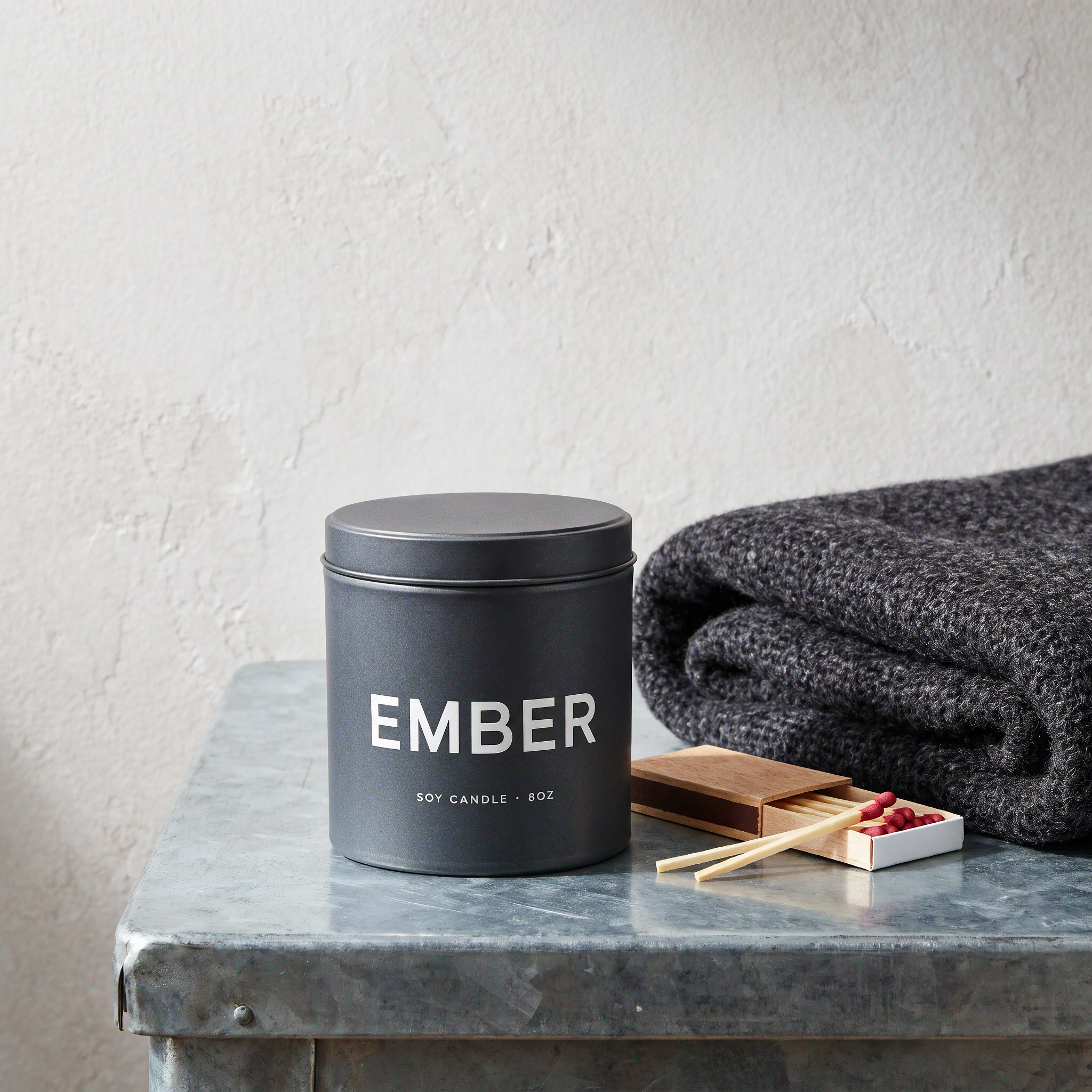
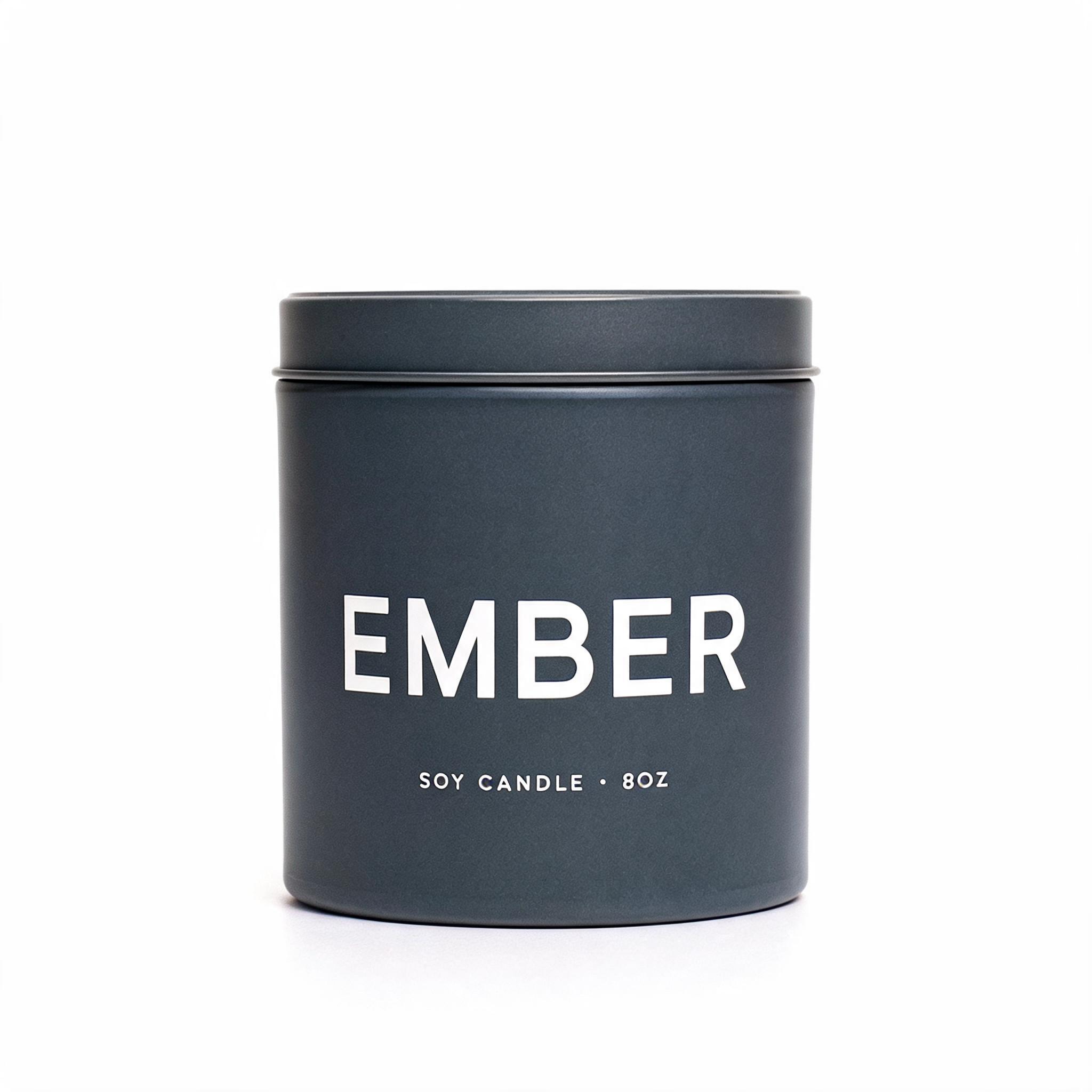 Packshot on whiteStyled scene
Change one thing, leave the rest
Turn on regional_edit and Krea 3 regenerates only the region your prompt describes. The rest of the frame stays pixel-exact, so you can chain local edits without quality loss. Name the single object to change, then close with what to keep. Here only the teapot turns emerald green; the cup, croissants, jam and oak table do not move.
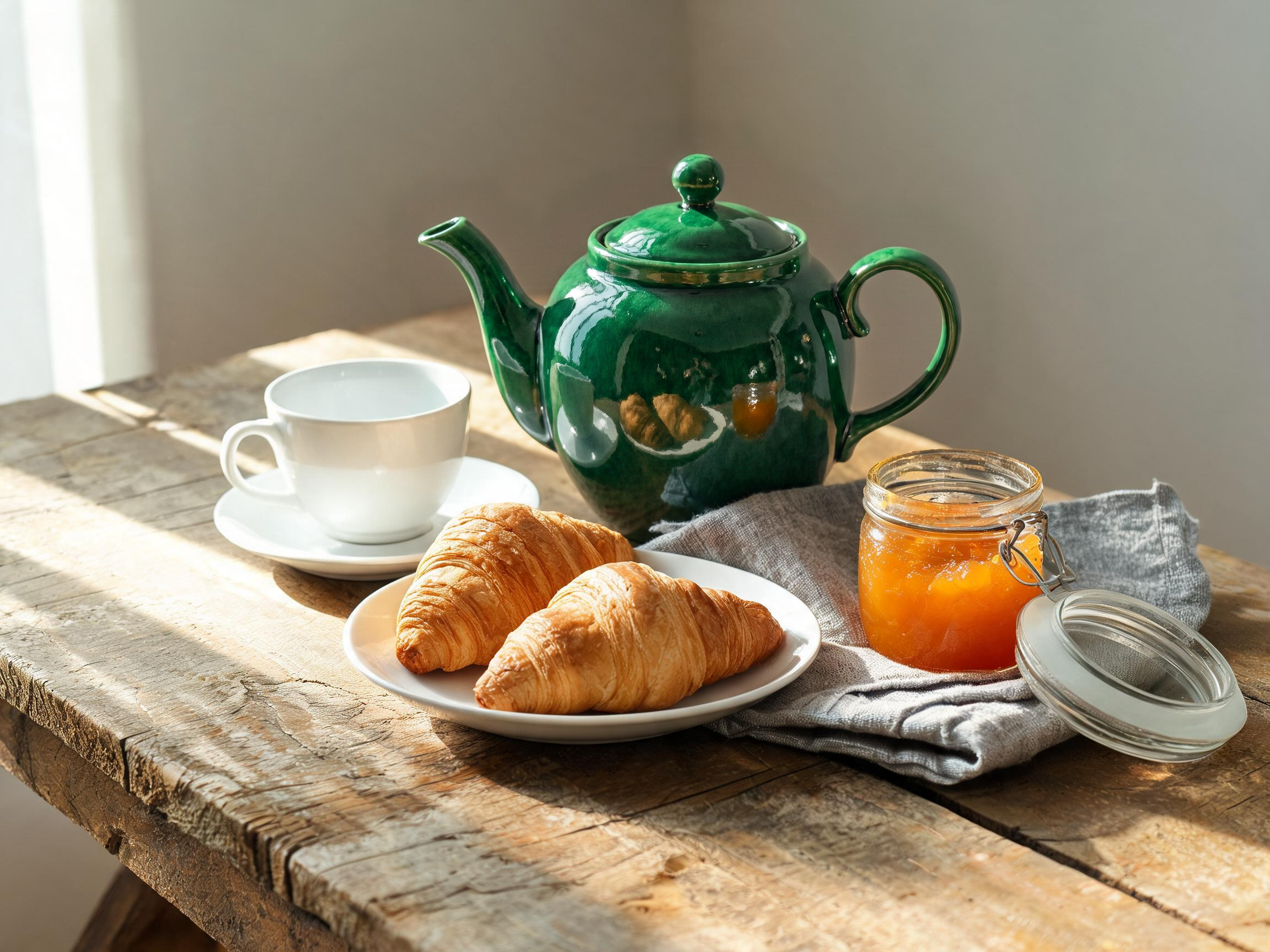
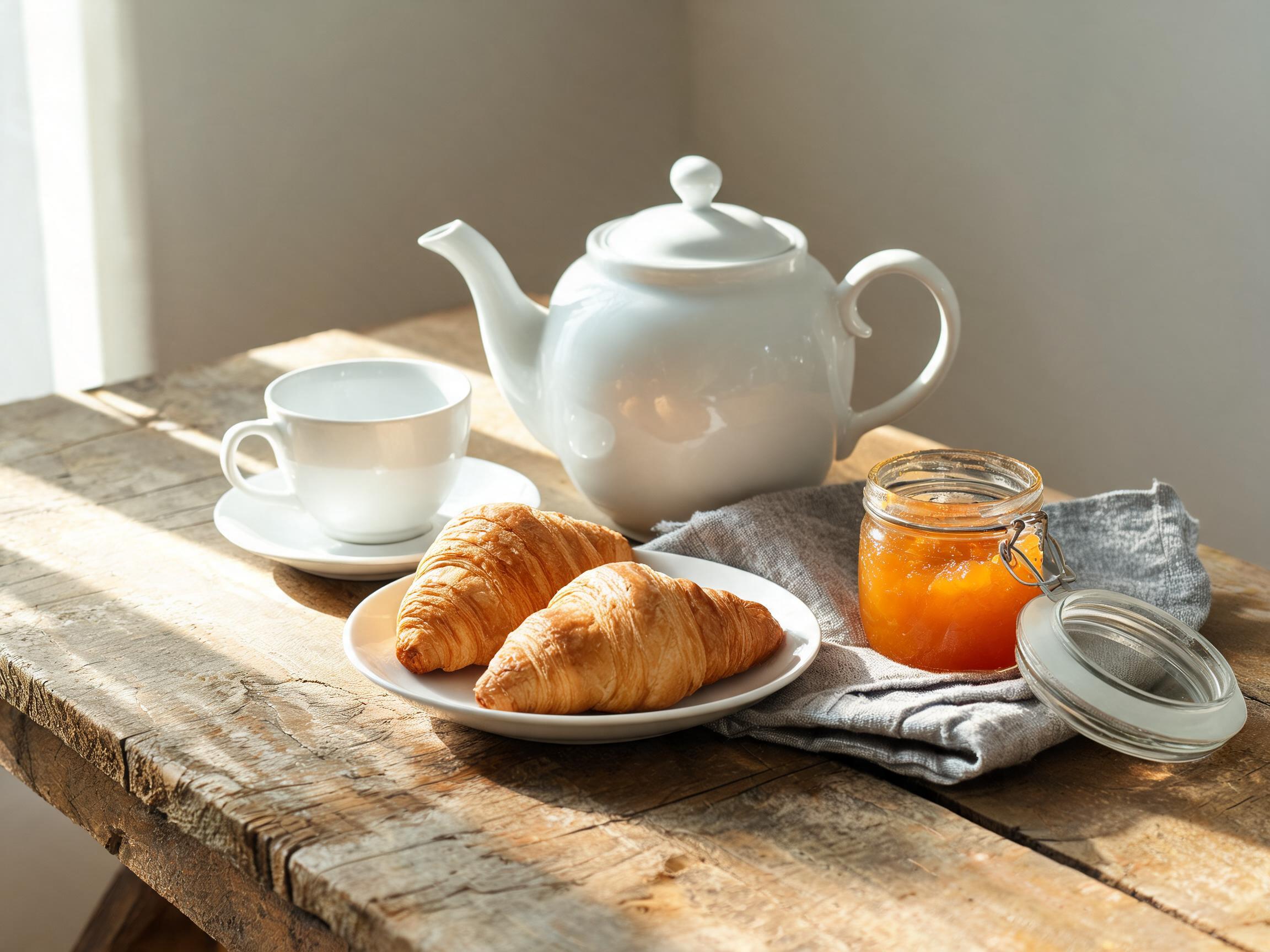 White teapotEmerald teapot
Combine several references
Krea 3 takes up to eight references in one edit. Number them, say what each shows, and it composes one coherent picture. Use thinking_mode high for multi-reference work, and send four or fewer references when fine detail matters. Here an empty room, a tan leather chair and a brass arc lamp become one furnished scene lit to the window.
Empty room Tan leather chair Brass arc lamp Furnished room
Examples to try
One more edit that ran at the settings shown, plus a few prompts to adapt.
Render this marker sketch of the cordless drill as a photorealistic studio product shot — matte charcoal body, orange rubber grip, brushed-metal chuck — on a seamless grey background. Keep the drill's proportions, the trigger and the battery pack exactly as drawn.
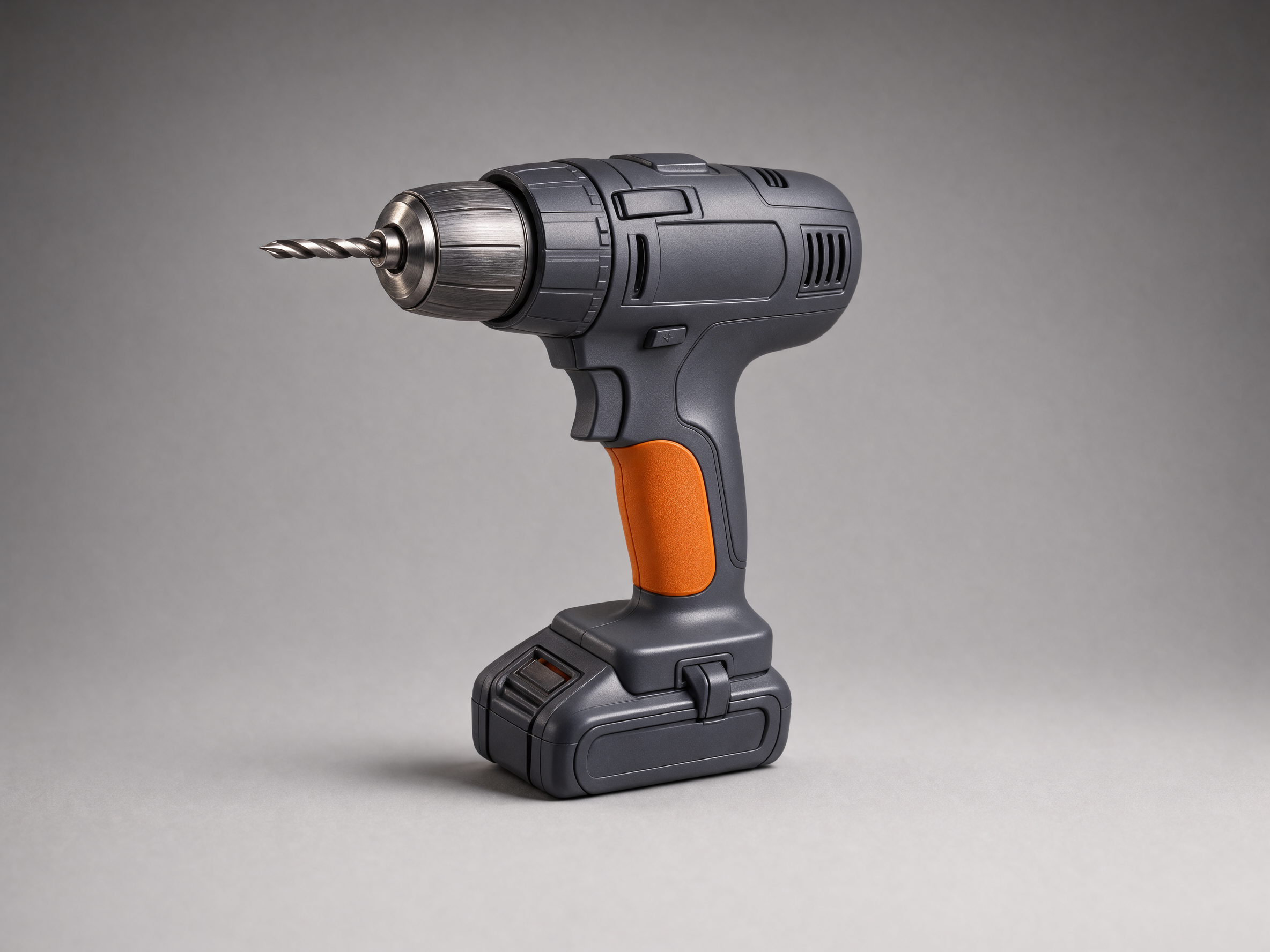
The flat drawing becomes a photographed tool in the materials you name; high mode reasons from the lines.
Other instructions to try: "Remove only the parked car on the left", "Reproduce the same character in a new pose", or "Restyle this photo as a pen-and-ink drawing" — prompts to adapt, not runs we shipped.
Recommended settings
| Setting | Value | When |
|---|---|---|
| resolution | 2k | Final, delivery-quality edits; use 1k for fast drafts |
| thinking_mode | fast | Everyday edits; switch to high for complex or multi-reference work |
| regional_edit | true | Local recolour, swap, add, remove or fix; leave false for whole-scene rebuilds |
| aspect_ratio | auto | Follow the reference framing; pick a fixed ratio to reframe |
| images | 1–8 | Reference images; send four or fewer when fine detail matters |
Good to know
- Small text, logos, technical diagrams and faces are not guaranteed. Check branded products and fine print before production.
- LoRAs and style references are not available for Krea 3 yet; Krea lists both as coming soon to its API.
- Reusing a seed does not guarantee identical results, because the prompt-expansion step varies.
- Use regional_edit for local changes; leave it off for global edits such as restyling, relighting or combining several images, which re-render the whole image.
Use it from the API
Send your reference images and the instruction, and the response returns the edited image directly. This is the default example shown above.
# pip install "segmind>=1.1.0"
# export SEGMIND_API_KEY="YOUR_API_KEY"
import segmind

result = segmind.run(
    "krea-3-image-edit",
    images=[
        "https://segmind-resources.s3.amazonaws.com/input/krea-3-image-edit-input.jpg",
    ],
    prompt="Place the candle tin on a weathered zinc tabletop beside a folded charcoal wool throw and an open box of matches, with a limewashed plaster wall behind it. Keep the tin and its printed EMBER label exactly as they are.",
    resolution="2k",
    aspect_ratio="auto",
    thinking_mode="fast",
    regional_edit=False,
)
print(result.get("output"))
# 1. Submit the request; the reply carries its request_id
REQUEST_ID=$(curl -s -X POST "https://api.segmind.com/v2/krea-3-image-edit" \
-H "x-api-key: YOUR_API_KEY" \
-H "Content-Type: application/json" \
-d '{
"images": [
"https://segmind-resources.s3.amazonaws.com/input/krea-3-image-edit-input.jpg"
],
"prompt": "Place the candle tin on a weathered zinc tabletop beside a folded charcoal wool throw and an open box of matches, with a limewashed plaster wall behind it. Keep the tin and its printed EMBER label exactly as they are.",
"resolution": "2k",
"aspect_ratio": "auto",
"thinking_mode": "fast",
"regional_edit": false
}' | jq -r .request_id)
# 2. Check its status until it is COMPLETED
curl -s "https://api.segmind.com/v2/requests/$REQUEST_ID/status" \
-H "x-api-key: YOUR_API_KEY"
# 3. Fetch the result
curl -s "https://api.segmind.com/v2/requests/$REQUEST_ID" \
-H "x-api-key: YOUR_API_KEY"Resources
- Try Krea 3 Image Edit on Segmind
- API reference
- Krea 3 API overview — endpoint, parameters, thinking modes, regional edits, prompting and code examples.
- Introducing Krea 3 — Krea's launch post on edit-first 2K editing, product and character consistency, and the prompt pattern behind the examples.
- Krea 3 (user guide) — using Krea 3 in the Krea app.
- #image-to-image
- #krea
- #model-launch
- #image-editing
- #product-photography