Seedream 5.0 Pro Layer Decomposition — Image-to-Image Layer Separation
What is Seedream 5.0 Pro Layer Decomposition?
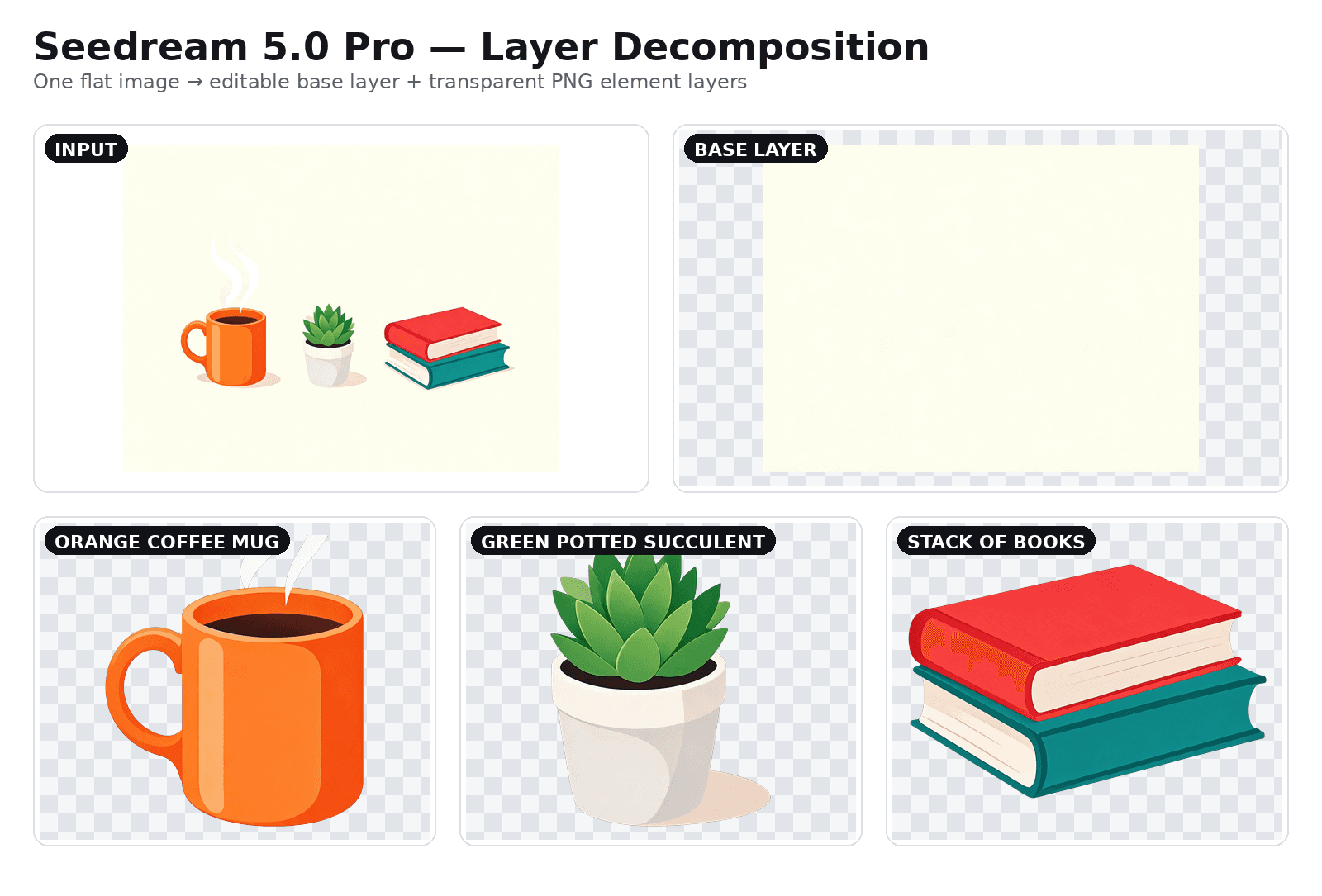
Seedream 5.0 Pro Layer Decomposition is the layer-separation variant of ByteDance's flagship Seedream 5.0 image model, released under the theme "Beyond Generation, It Understands Design." Give it one flat image and it returns an editable stack: a base image plus up to 16 independent transparent PNG element layers. Each element layer comes back with its stacking order (z_index), bounding-box coordinates, a machine-generated name, and a short semantic description. Regions of the background that were hidden behind extracted subjects are automatically inpainted, so the base and every cut-out layer are complete, standalone design assets you can drop straight into Photoshop, Figma, or Canva.
Key Features
- •Base image plus up to 16 transparent RGBA layers from a single input (at most 17 images per request).
- •Per-layer metadata: z_index stacking order, absolute and normalized bounding boxes, name, and description.
- •Automatic inpainting of backgrounds previously occluded by foreground subjects.
- •Prompt-guided or automatic separation — name the elements you want, or let the model detect them.
- •Output resolution control at auto, 1K, 1.5K, or 2K; PNG or JPEG base with always-transparent element PNGs.
- •All-or-nothing reliability: a request never returns a partially decomposed stack.
Best Use Cases
The model shines in production design workflows. E-commerce teams split product photos into subject, shadow, and background layers for fast catalog swaps. Designers decompose generated posters and infographics to reposition a headline, recolor a background, or replace a subject without re-rolling the whole image. Because text and graphic elements can be pulled onto their own layers, it is a natural fit for localization and copy-swap pipelines. Motion designers feed the z-ordered, transparent layers directly into parallax, reveal, and micro-animation timelines. In our testing, a three-object flat-lay separated cleanly into a fully inpainted base plus crisp mug, plant, and book cutouts.
Prompt Tips and Output Quality
List each element you want as a separate layer by object plus a distinguishing colour or position, for example "the orange coffee mug, the green potted succulent." Clean element definitions produce sharper cutouts and more predictable layer counts, since each named element becomes its own layer. Leave the prompt empty and the model auto-detects every major element. Keep optimize_prompt_mode on standard for the cleanest edges, and use 2K for crisp, print-ready assets. Across repeated runs the alpha channels were full-range and edges stayed clean around fine detail like rising steam.
FAQs
How many layers can it output? A base image plus up to 16 transparent element layers — 17 images maximum per request.
Does it fill in the hidden background? Yes. Areas occluded by extracted subjects are seamlessly inpainted so every layer is complete.
What formats can I upload? PNG, JPEG, BMP, TIFF, or GIF, from 512x512 to 6000x6000 pixels, up to 30MB.
Are the element layers transparent? Every element layer is a PNG with a full alpha channel; only the base image format switches between PNG and JPEG.
Can I control which elements are separated? Yes — name them in the prompt, or leave it blank for automatic detection.
What resolutions are supported? auto (match input), 1K, 1.5K, and 2K.