Guide to Segmind Charm Collider
Segmind Charm Collider puts the face from one photo on a person in a video and keeps the performance. A guide with worked examples and tips.
Segmind Charm Collider puts the person from one photo into a video clip and keeps every movement, expression, lip movement and camera move of the original take. It is for creators who want to star in a scene they have the rights to, and for film and ad teams who need to recast a shot without a reshoot.
 PixelflowSegmind Charm ColliderPut yourself in any video with one photo: Segmind Charm Collider swaps the person in a clip and keeps every move, expression, lip movement and camera move. For creators and fans, and for film and ad studios recasting a shot. Up to 1080p, with your clip's sound.
What you give it
| Input | What to give it | Tip |
|---|---|---|
Clip (clip) | One continuous shot, 4 to 30 seconds, with the person you want to replace. | Pick a shot where the face is easy to see. The result keeps the clip's length, frame rate and sound. |
Your photo (your_photo) | A clear, front-facing photo of the new face. | Crop it to the head: clothes that show in the photo can come through. |
Who (who) | A short phrase that picks the person to replace, such as "the young man with dark hair". | Describe what you can see in the clip: hair, beard, clothes colour. The photo describes the new person, so leave that out. |
Outfit (outfit) | Keep the clothes from the clip (the default), or wear the clothes from the photo. | Keep the default when the shot has to cut with the rest of a scene. |
Resolution (resolution) | 480p, 720p (the default) or 1080p. | Test at 480p, finish at 720p, and pick 1080p for close-ups and small faces. |
Use only clips you have the rights to, and a photo of yourself or of someone who agreed to it.
Examples
Put a new face on an actor in a movie scene
A filmmaker or a fan wants a different person in a dialogue close-up, with the line and the lip sync kept.
The new face, `your_photo`
the young man with dark hair
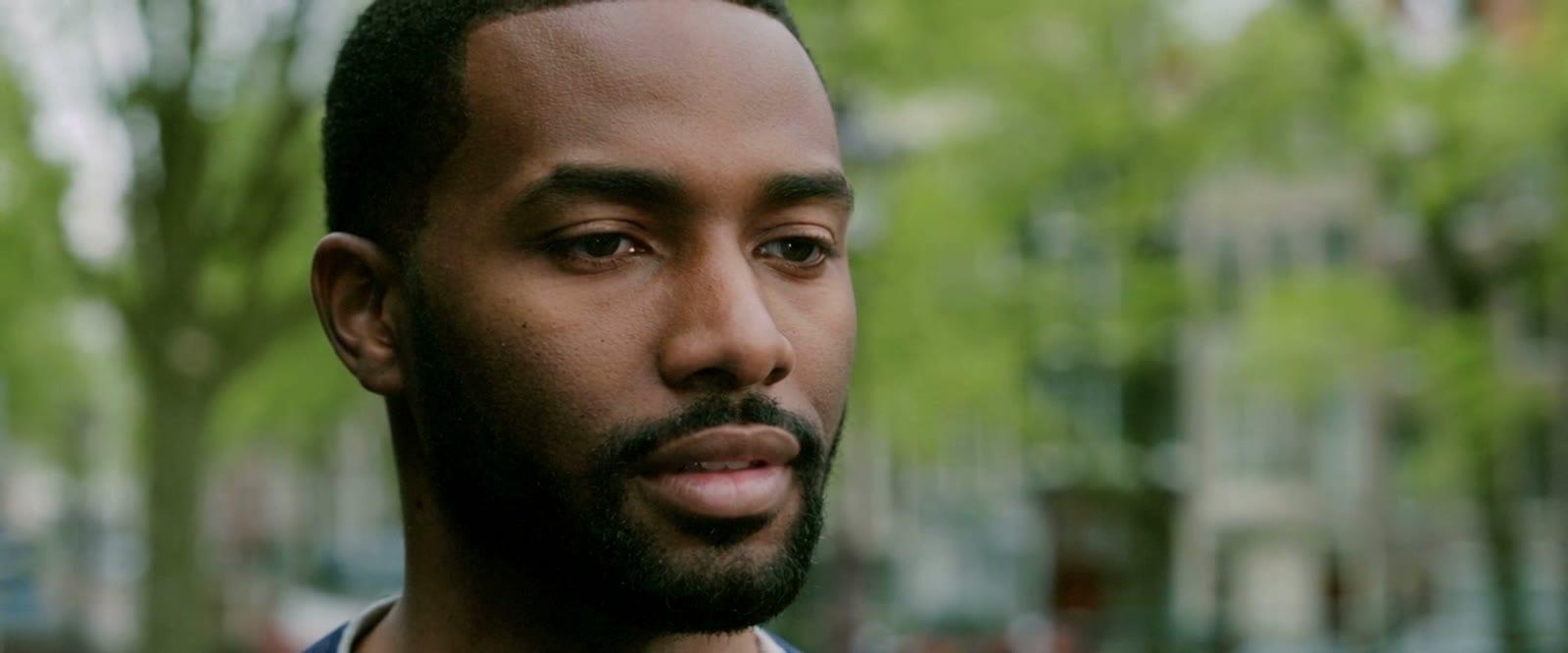
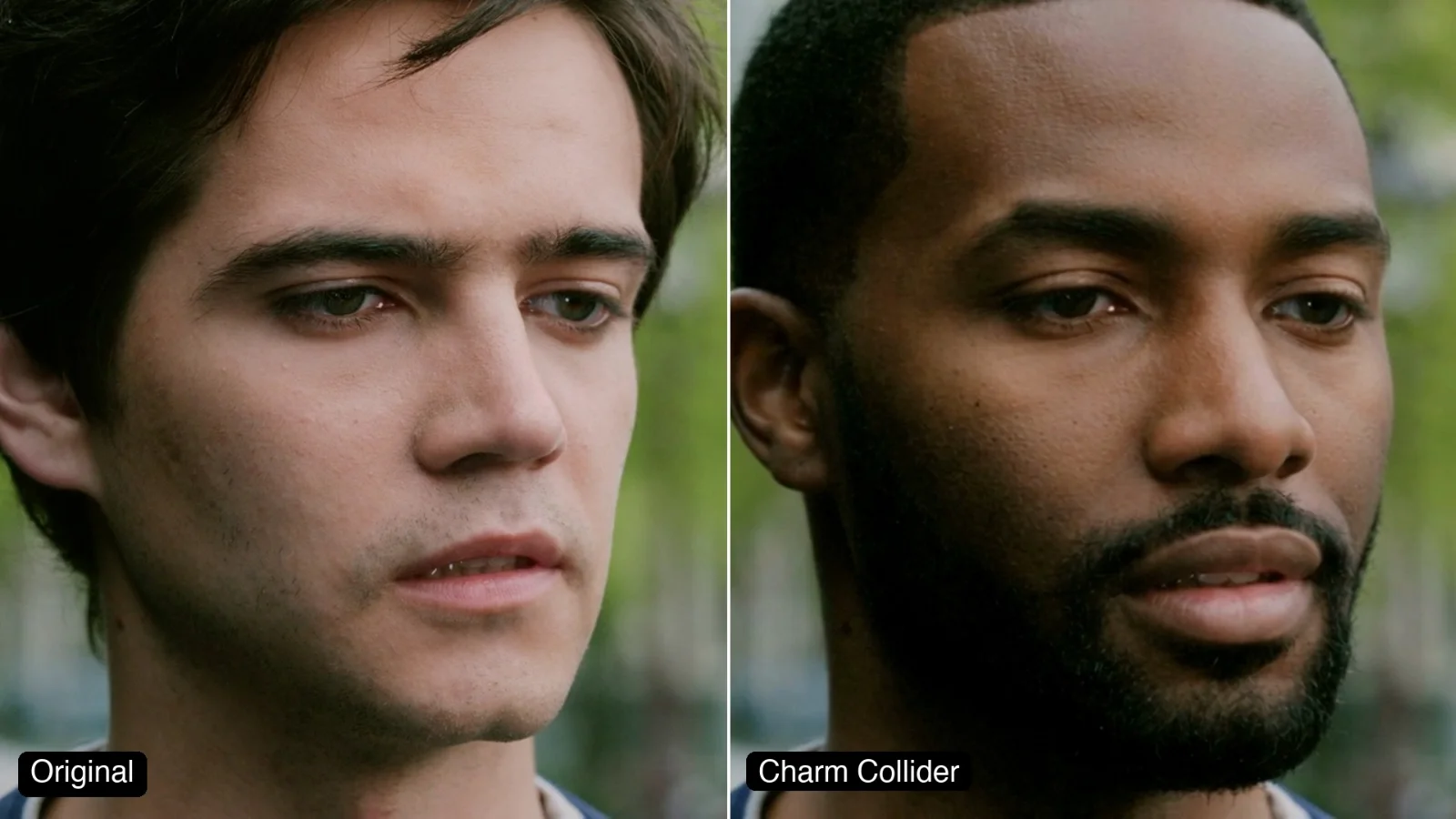
The new face reads as the man in the photo: his skin tone, short hair, full beard and brows. The head turns, the downward eye-line, the mouth shapes on "Look Celia. We have to follow our passions." and the jersey collar from the clip all stay, and the park behind him is unchanged.
Tears of Steel, (c) Blender Foundation, mango.blender.org, CC BY 3.0.
Try different actors in the same take
A casting team, or a creator with a cast for a series, wants to see how several people play the same line before anyone is booked.
Face 1, `your_photo` Face 2, `your_photo` Face 3, `your_photo`
the young man with dark hair
- Your footage
- Face 1
- Face 2
- Face 3
Each face is one run with the same clip and words. All three keep the head turns, eye-lines and mouth shapes of the original, so each person says the line in time with the clip's sound, and all three keep the jersey collar. The photo also sets the hair: the woman gets the photo's slicked-back, centre-parted hair, and the older man his short grey hair and beard.
Tears of Steel, (c) Blender Foundation, mango.blender.org, CC BY 3.0.
Put a stand-in's face on a full-body shot with a camera move
A production wants a different face on a double or stand-in in a wide shot, where the camera tilts up as he walks in.
The new face, `your_photo`
the bearded man in the black t-shirt
The walk, the camera tilt, the black t-shirt with its bird logo, the jeans and the trail all held, and the red beard is gone: the new man is clean-shaven with the photo's short black hair. Seen from this low angle, though, the face reads only loosely as the man in the photo. A likeness carries best when the face is large and turned towards the camera, as in the first example.
Chimera, Netflix, Inc., CC BY 4.0.
Keep the clip's clothes when you swap a face
Anyone working from a selfie or a portrait has this problem: if the photo shows a shirt, that shirt can end up in the shot.
Uncropped, `your_photo` (this run) Cropped to the head, `your_photo` (first example)
the young man with dark hair
The face is as good as in the first example, but the photo's grey t-shirt replaced the navy and white collar from the clip, even with the default outfit setting. With the same photo cropped to the head, in the first example, the clip's collar stayed.
Tears of Steel, (c) Blender Foundation, mango.blender.org, CC BY 3.0.
Tips for good results
- Crop your photo to the head. With the uncropped photo above, the t-shirt came through on 1 of 2 runs. Every other run in this guide used a photo cropped to the head, and each kept the clip's clothes.
- Use a clear, front-facing photo in plain, even light. Every photo here is a portrait against a plain wall, looking straight at the camera.
- Expect the photo's hair and beard, not the clip's. The tool carries over the face, hairstyle, skin tone and facial hair, so a clean-shaven photo removes a beard and a slicked-back photo gives slicked-back hair.
- Name the person by what you can see. Start Who with "the" and use hair, beard, clothes or position, such as "the bearded man in the black t-shirt". In a two-person shot, naming the clothes changed only that person.
- Give it a face it can see. The likeness is strongest in a close-up with the face towards the camera; on a low angle or a small, distant face it is looser.
- Don't judge a small face at 480p. In a 480p test of a two-person dialogue shot, the small face kept the original actor's look and hair. Finish at 720p, or 1080p for close-ups and small faces.
- Swap one person per run, in one continuous shot.
- Results vary from run to run. There is no seed setting, so if clothes come through or a detail slips, crop the photo tighter and run it again.
Use it from the API
Every input in the table above is a field with the same key in the API, so you can send a clip URL, a photo URL and the three settings from your own code. Submit the request, then poll until it completes; the request format is on the Segmind Charm Collider API page.
Bring a clip you have the rights to and a photo, and try it at Segmind Charm Collider.
- #guide
- #ai-video
- #face-swap
- #video-editing
- #film-making
- #content-creation